
Set-up guide
Your LinePing waiting room, step by step.
Setting up takes about 5 minutes. Your customers scan a QR code, join the queue on their phone and see when it's their turn. They don't need an app or an account.
Your invite email
It has your set-up link and activation code.
A phone or tablet
This is your staff screen for calling customers.
A printer (optional)
To print a QR sign for your door or counter.
Part 1 · Set up (once)
Step 1
Open your invite email
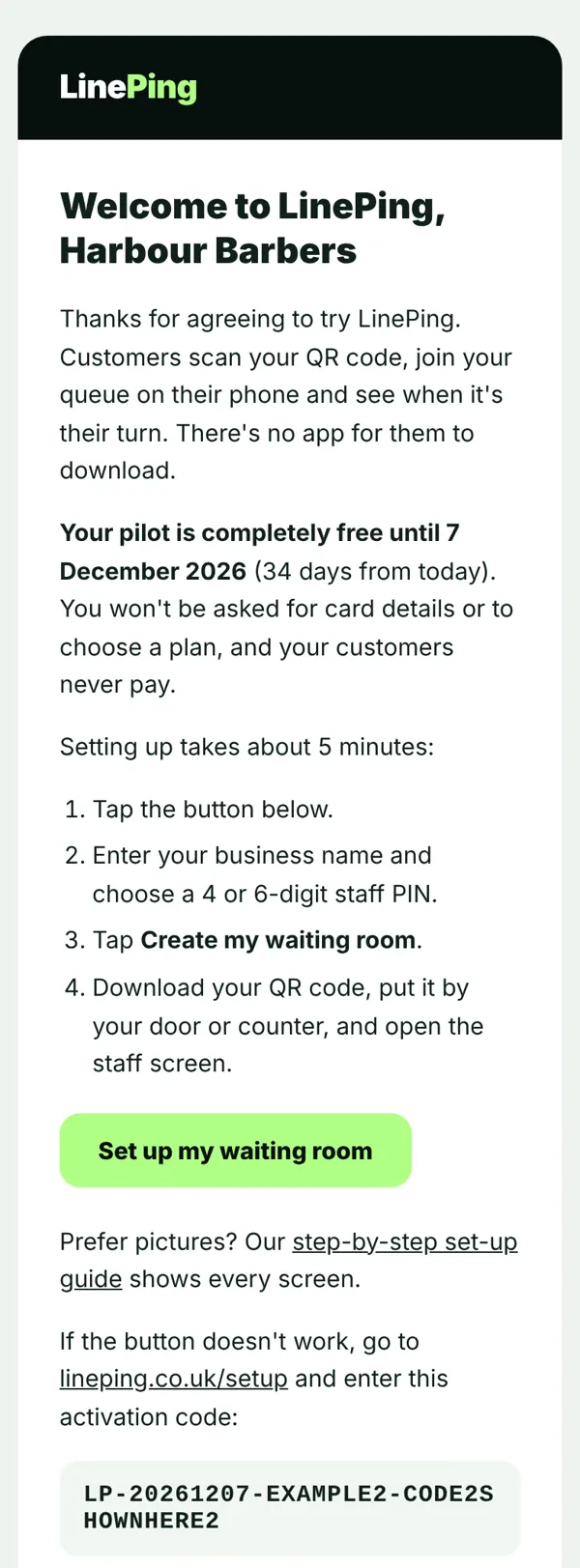
Look for an email from LinePing called "Your free LinePing pilot". If you can't find it, check your spam or junk folder.
Tap Set up my waiting room. Your activation code is filled in for you.
If the button doesn't work, go to lineping.co.uk/setup, tap Have a pilot activation code? Enter it here, and paste the code from the bottom of the email.
Step 2
Name your waiting room
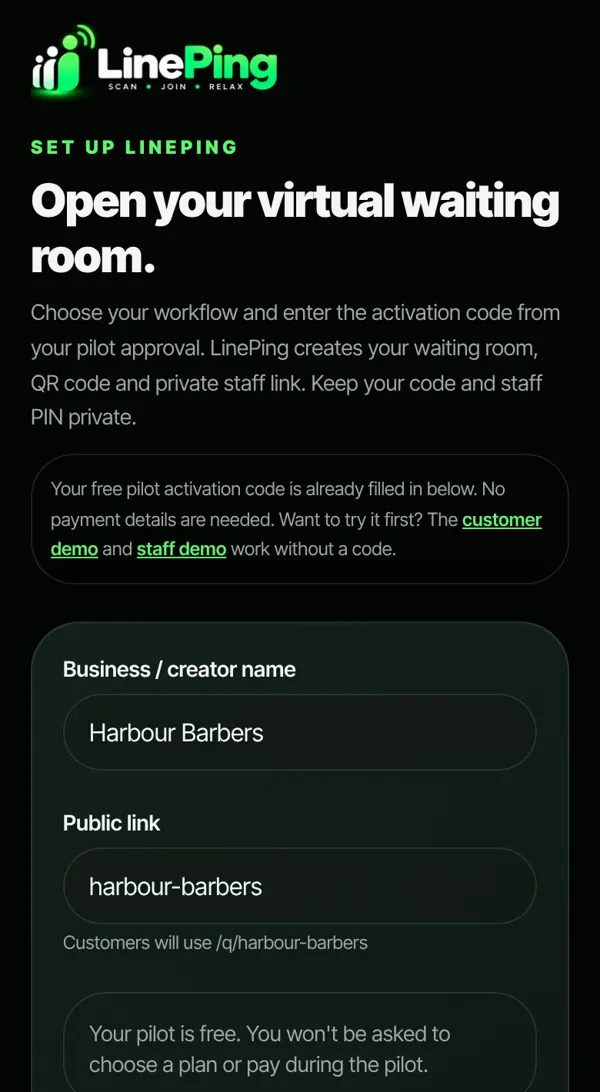
Type your business name. This is what customers see when they join.
Your public link is filled in from the name. It's the web address your QR code opens, for example lineping.co.uk/q/harbour-barbers. Change it now if you'd like something shorter, because your QR code will point to it.
Pick the type that suits you. Service Queue is right for barbers, salons, studios and most shops. Food & Collection is for orders people wait to pick up.
You can leave Advanced options alone for now. You don't need an account for the pilot either.
Step 3
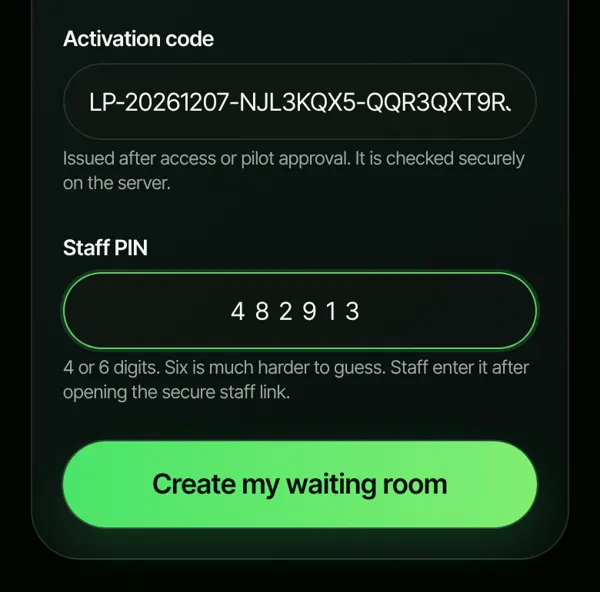
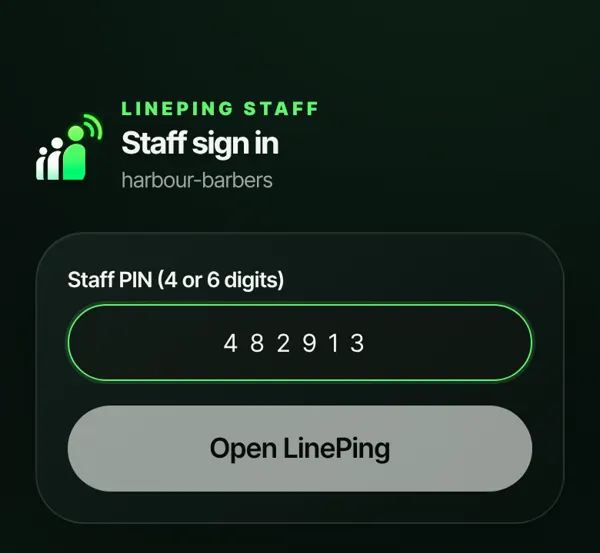
Choose a staff PIN and create your room
Choose a six-digit staff PIN that isnChoose a staff PIN of 4 or 6 digits. Six digits is safer. You and yourapos;t a pattern like 123456. You and your team type this PIN to open the staff screen, so pick one you'll remember and don't tell customers.
Leave Open the queue straight away switched on, then tap Create my waiting room.
Step 4
Save your QR code and links
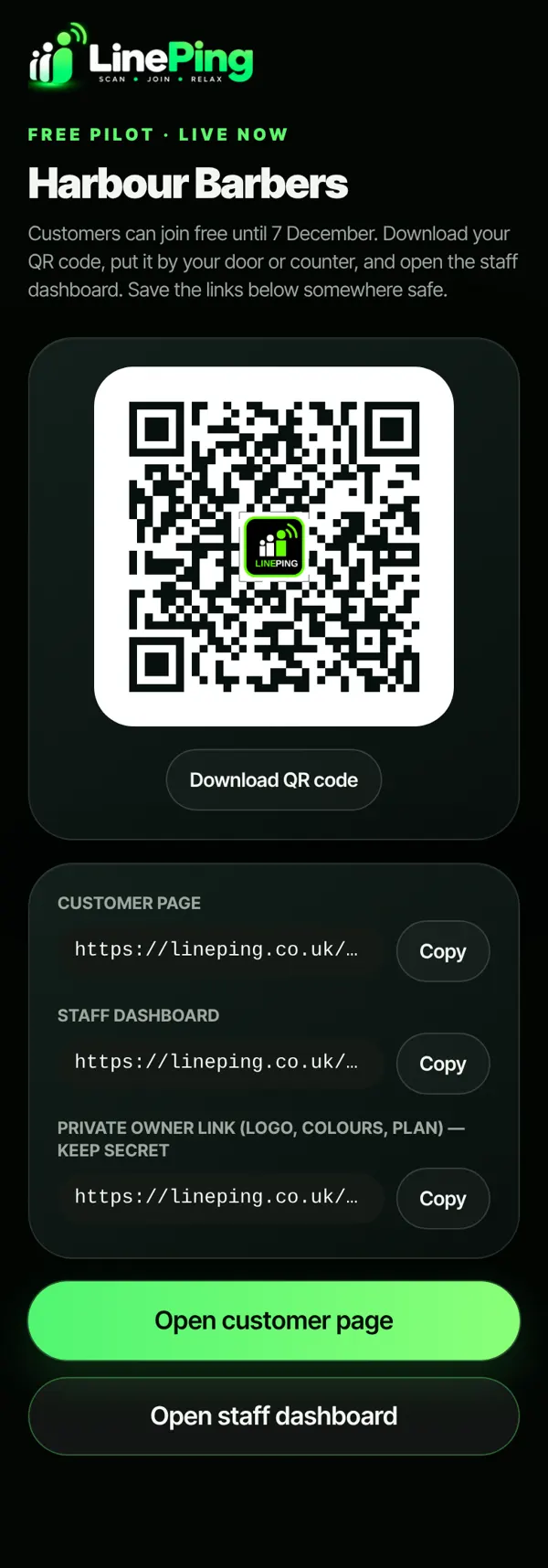
You'll see Free pilot · live now and your QR code. Customers can join straight away.
Tap Download QR code. Print it, or show it on a screen, by your door or counter.
Save the three links somewhere safe, such as an email to yourself:
- Customer page: the same address as the QR code. You can share it on social media.
- Staff dashboard: where you call customers. Share it with your team along with the PIN.
- Private owner link: for your logo, colours and plan later. Keep this one to yourself.
This is the only time all three links are shown together, so please save them before you leave this page.
Part 2 · Every day
Step 5
Open the staff screen
On the phone or tablet behind your counter, open your staff dashboard link, type your PIN and tap Open LinePing.
Add the page to your home screen so it's one tap away. On iPhone, tap Share, then Add to Home Screen. On Android, tap the ⋮ menu, then Add to Home screen.
Step 6
Customers scan and join
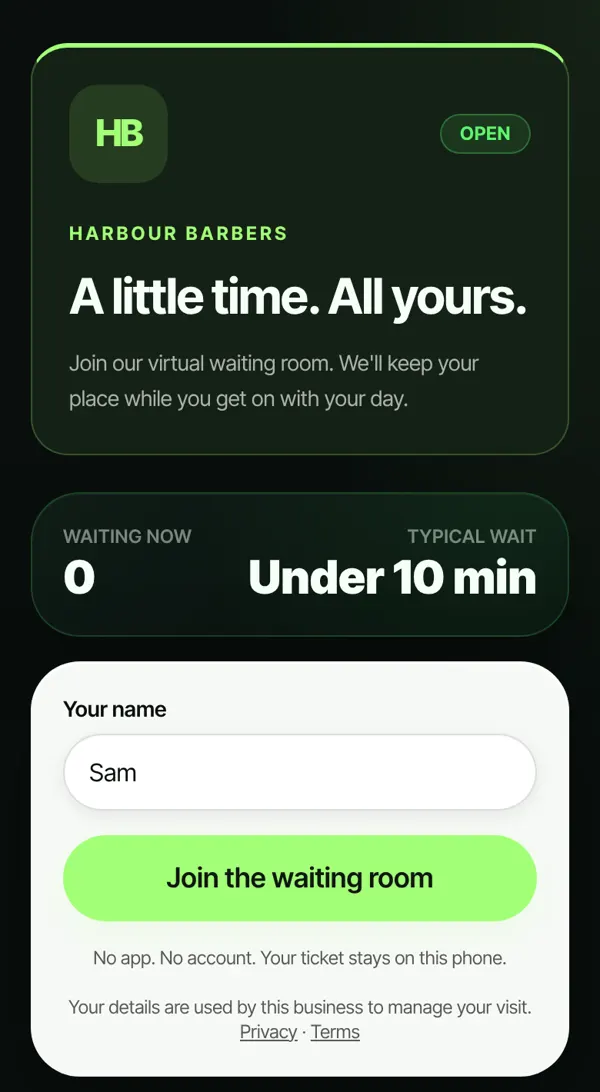
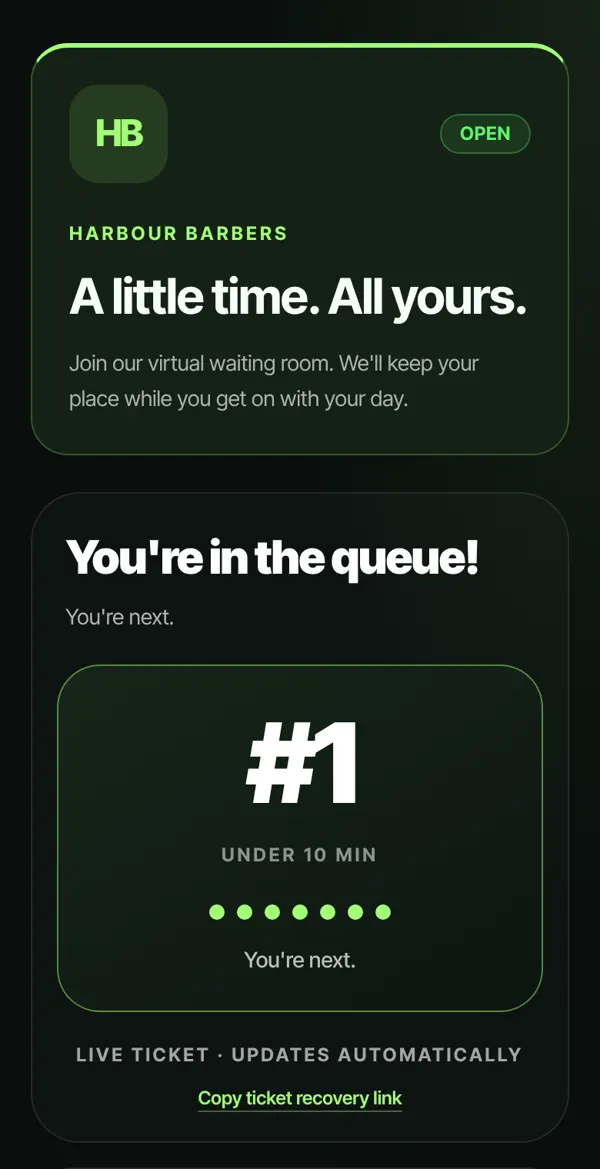
Customers scan your QR code with their phone camera, type their name and tap Join the waiting room.
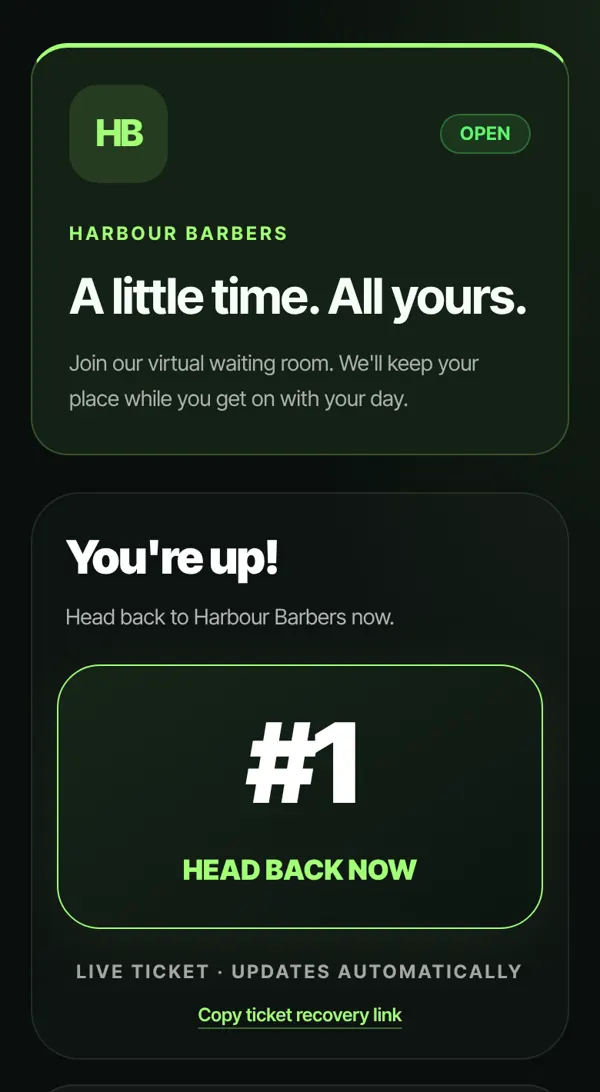
They get a live ticket with their number and a rough wait time. It updates by itself, so they can sit down, grab a coffee or wait nearby.
Someone without a phone? Add them yourself with Add customer manually on the staff screen.
Step 7
Call the next person
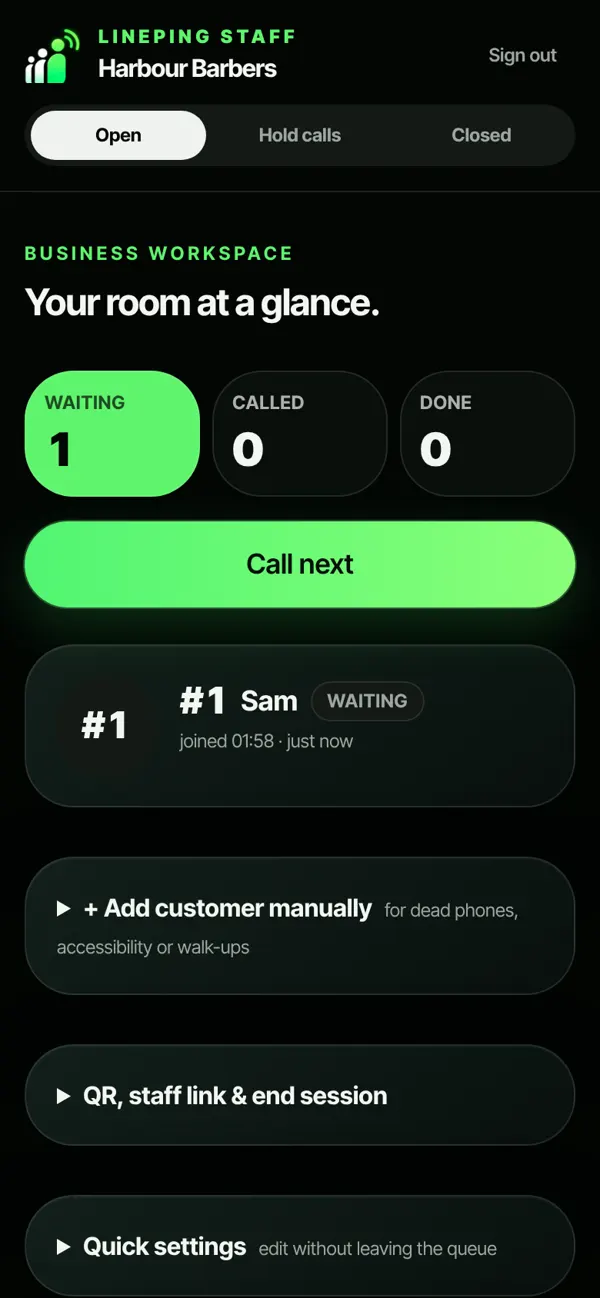
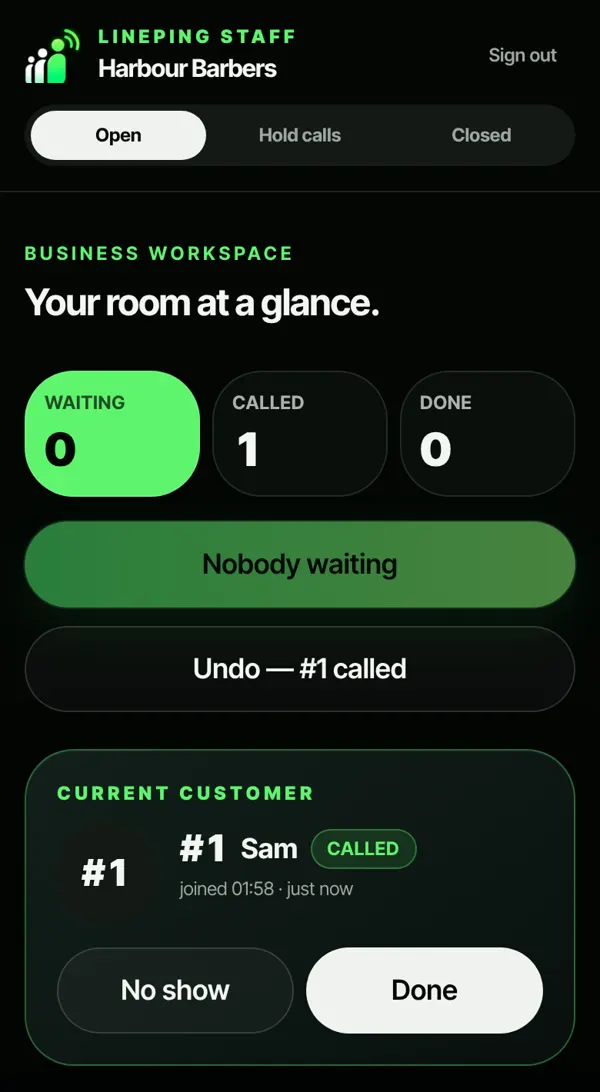
The staff screen shows who's waiting. When you're ready, tap Call next.
The customer's phone shows You're up! and tries to vibrate and chime.
When you've finished with them, tap Done. If they don't come back, tap No show. Tapped by mistake? Use Undo.
Step 8
Handy controls
At the top of the staff screen:
- Open: customers can join and you can call them.
- Hold calls: for a short break. Customers can still join and keep their place.
- Closed: nobody new can join.
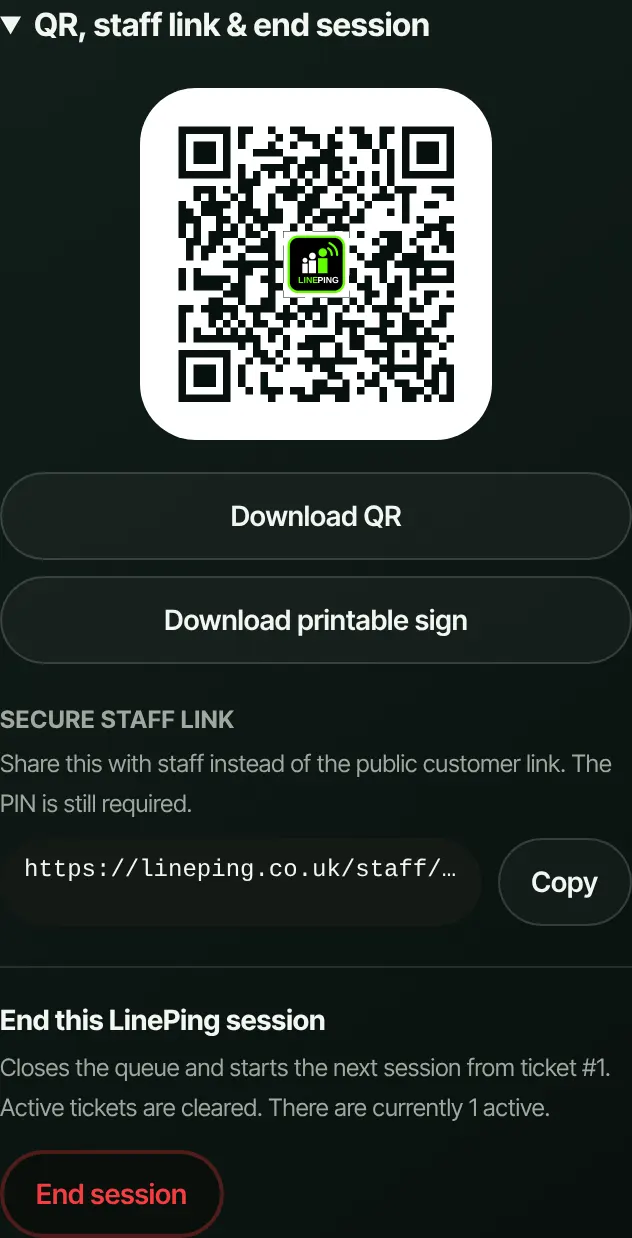
Under QR, staff link & end session you can download your QR code again, or a printable sign with it ready to put up.
At the end of the day, tap End session. It clears the queue and the next day starts again from ticket #1. The queue is then closed, so tap Open when you start the next day.
Quick settings lets you change your business name, what you ask customers and the wait time they see, without leaving the queue.
During your free pilot
- It's free until the date in your invite email. You won't be asked for card details.
- Text messages aren't included. Customers follow their ticket on screen, so ask them to keep the page open.
- Your customers never pay anything to join.
Need help?
Email hello@rmehub.uk or reply to your invite email. If you lose your staff link, we can help you get back in.